

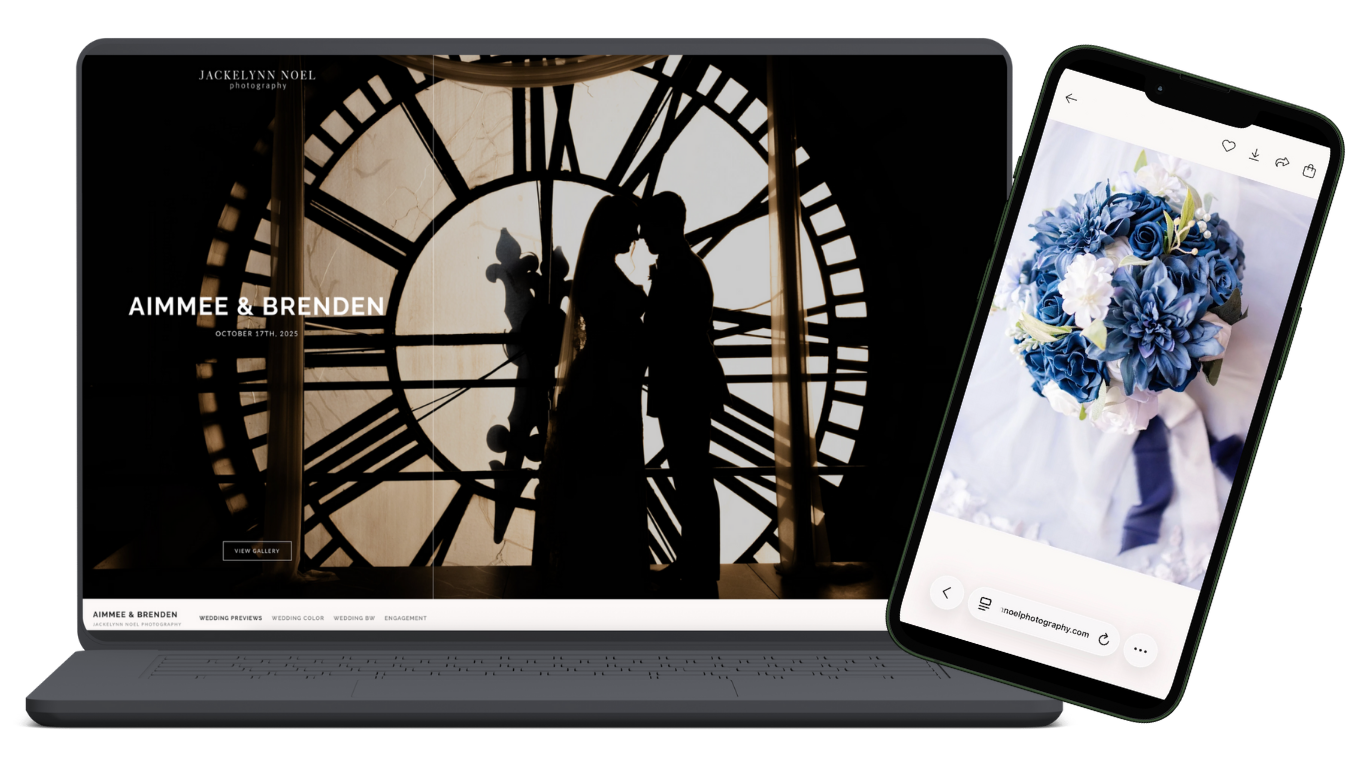
After your session, you’ll receive an online gallery where you can view, download, and share your images. Pixieset makes this easy—but depending on whether you’re on a computer or your phone, the steps can look a little different.
This guide walks you through how to download all of your photos at once or download individual images, on both desktop and mobile.
How to Download All Photos at Once
This is best for backing up your images for safekeeping.
- Once you have entered your gallery:
- Desktop: Select the download icon in the top right.
- Mobile: Select the 3-dot menu icon, then select download.

2. You’ll enter the email address you’d like to receive the zip file to next.

3. The last step is to select the collections you’d like to download and specify the download location. Download options include your device (computer or phone), Google Photos, or Dropbox.
If you choose Google Photos or Dropbox, a window will appear to have you log in to your account.

How to Download One Photo at a Time
This is good for sharing images, for images you want to post on socials, and individuals you’d like to keep on your mobile device.
Desktop: You can hover over the image or click on it. If you hover on it you’ll see the download icon appear in the bottom right of the image. If you click on it, the download icon will appear in the top right.
You’ll be asked where you want to save the image – My Device, Google Photos, or Dropbox – after you make the selection, the download will start. If you choose Google Photos or Dropbox, a window will appear to have you log in to your account.

Mobile: Select the image you like; the download button will appear in the top-right corner.
You’ll be asked where you want to save the image – My Device, Google Photos, or Dropbox – after you make the selection, the download will start. If you choose Google Photos or Dropbox, a window will appear to have you log in to your account.

Troubleshooting Common Issues
- Images won’t download?
Try switching browsers or refreshing the page. - ZIP file won’t open?
Make sure your phone or computer software is up to date. - Still stuck?
Reach out—I’m always happy to help walk you through it.
Final Tip: Back Up Your Photos
Once downloaded, I strongly recommend saving your images in at least two places (computer + cloud or hard drive). This ensures your memories stay safe long-term.
If you have any questions about your gallery—or need help downloading—don’t hesitate to reach out. I want this part to feel easy so you can enjoy your photos without the tech stress 🤍


0 COMMENTS